Preparing the USB flash drive
This section describes the procedure of preparing the USB drive that will be used in updating BIOS on an SN3100 firewall.
Downloading the update utility and copying it to the USB flash drive
- Download the most recent version of the Aptio V Firmware Update Utility
- Unzip the archive Aptio_V_AMI_Firmware_Update_Utility.zip.
- In the sub-folder Aptio_V_AMI_Firmware_Update_Utility/bgt/bgtefi/64/5.03, unzip the archive BgtEfi64.zip.
- In the sub-folder Aptio_V_AMI_Firmware_Update_Utility/bgt/bgtefi/64/5.03, copy the file BgtEfix64.efi to the root folder of your USB flash drive.
Downloading BIOS version R2.30 and copying it to the USB flash drive
- In your Mystormshield area, go to Downloads > STORMSHIELD NETWORK SECURITY > TOOLS > STORMSHIELD NETWORK SECURITY-TOOLS.
- Download the .zip file SN3100 BIOS R230 by clicking on its name.
-
Verify the integrity of the downloaded .zip file by using its SHA256 hash:
14fb5675c619ccba4342807530fc9f90c8a82e954df024fb64449d7efd4aab5a
- Unzip the archive SN3100_BIOS_R230.zip to the root folder of your USB flash drive.
- Verify the root folder of your USB flash drive. You should find the following files and folders in it:
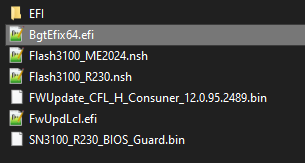
-
Verify the integrity of the binary file SN3100_R230_BIOS_Guard.bin using its SHA256 hash:
036113e77edaf0f6eda51ba7edbb733bbd1cfc7167110fbeda9fad2ef4967f57
-
Verify the integrity of the binary file FWUpdate_CFL_H_Consuner_12.0.95.2489.bin using its SHA256 hash:
00319e0bf2b9078f3c41b1b7c799e87b27335fe551e3eb37aad37c0270220f4f
Your USB flash drive containing the BIOS update and Intel Management Engine firmware is ready.